
In short
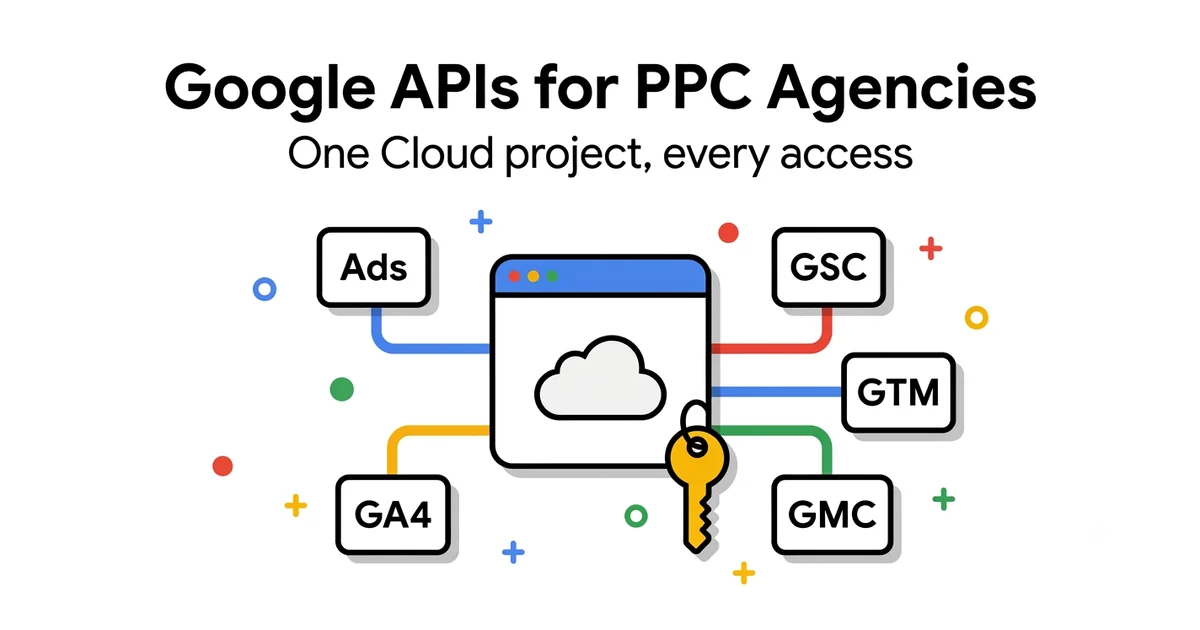
One Google Cloud project covers Google Ads, GA4, Search Console, Tag Manager, Merchant Center, and Data Manager — you don't need a separate application per tool. The mistake I've seen most (and made myself): leaving the OAuth consent screen in Testing mode, which kills your refresh token after exactly 7 days.
1
Cloud project for every API
7 days
Before a Testing-mode token dies
6
APIs covered in this guide
$0
Cost of setting any of this up
Quick answer
A PPC agency running more than a handful of accounts needs access to six services: Google Ads API (reporting and campaign management), GA4 Data and Admin API (reporting and account configuration), Search Console API (search performance and indexing), Tag Manager API (tag auditing and editing), Merchant Center API (feed status and product issues), and the newer Data Manager API (server-side audience data). All six authenticate through the same Google Cloud project — create it once, enable the APIs you need, and generate OAuth credentials for each.
By the time I finished applying for Google Ads API Basic Access — it took two rounds, since the first submission got sent back for more detail — it was clear the developer token was only one piece of a bigger picture. The same agency automating Google Ads reporting also needs GA4 data for attribution, Search Console data for the SEO side, Tag Manager for tracking audits, and Merchant Center for Shopping feed diagnostics. Each of those tools has its own API, its own scope, and its own rules — but they all sit under one roof: a Google Cloud project you set up once and then keep adding services to.
This guide covers that whole roof, starting from zero. We go through the foundation (the Cloud project and OAuth consent screen, including a mistake that once killed one of my tokens), then through each of the six APIs individually, with the scope you need and where to enable it. Google Ads API developer tokens and the brand verification pilot get their own dedicated guide, linked in the relevant section below — here I just place it in the wider context.
Why an agency needs API access
With a handful of accounts, the browser interface is plenty. Open Google Ads, check performance, open GA4, cross-check the numbers, done. The problem shows up once the account count climbs into double digits while the hours in your day stay fixed. Opening every account by hand each morning stops being sustainable, and that's the point where API access stops being a nice-to-have and becomes the only realistic way the work fits into a day.
Concretely, API access enables four things the interface doesn't give you on its own: automated reporting that generates itself without you triggering it, dashboards that pull data from multiple accounts into one place, bulk operations (changing budgets across ten accounts at once, for example), and increasingly, agentic automation where an AI agent reads data through the API and proposes or executes actions against rules you've defined in advance.
All of that requires your agency to have programmatic access to data, not just browser access. Which brings up the first, and probably most important, insight: you don't need a separate "application" per tool.
One Google Cloud project is your only "application" as far as Google is concerned. Enable Google Ads API, GA4 API, Search Console API, Tag Manager API, and the rest inside it — every additional API is just an Enable click in the same project, not a new project and not a new registration.
The foundation: Cloud project and OAuth consent screen
Before you touch any individual API, two things need to be set up once, at the project level. The first is the Google Cloud project itself — free, created in a couple of minutes through Google Cloud Console, and it acts as the container you'll enable APIs inside. The second, and far more important for long-term stability, is the OAuth consent screen.
The OAuth consent screen is what a user sees when your application (meaning you, as the developer) requests permission to access their Google data — an Ads account, a GA4 property, Search Console. Every OAuth flow goes through it, regardless of which of the six APIs in this guide you're calling. And that's exactly where a mistake hides that looks harmless until it isn't.
The key lesson
If the OAuth consent screen stays in Testing status, the refresh token you get expires after 7 days — regardless of how well everything else is configured. Any script relying on that token stops working exactly a week later, usually with no obvious error explaining why. This happened to me on a Merchant Center token: the project sat in Testing mode, everything worked flawlessly for a few days, and then the refresh simply stopped. The fix is straightforward once you know to do it deliberately: in Cloud Console, under OAuth consent screen (or Google Auth Platform → Audience), switch the publishing status from Testing to In production.
Switching to Production doesn't mean your app has to be public or reviewed by a human before it works — for internal tools using standard scopes, this is largely a self-service action with no waiting involved. Google only requires human verification for certain "sensitive" or "restricted" scopes (broad Gmail access, for instance), and for what an agency typically uses — Ads, Analytics, Search Console, Tag Manager, Merchant Center — you can set the status to In production yourself, immediately.
From my experience
The first time you set up a Cloud project, do this step immediately, before you even generate your first OAuth credential. Testing mode only makes sense while you're literally testing authentication in the first hour or two — the moment a script is expected to run for more than a week, the status needs to be Production. It's a cheap step to get right up front, and an expensive one to discover you skipped through a dead automation.
Check who holds Owner or Editor on the project
While the Google Ads API Center still exists, administrative and compliance notices about your Cloud project go to the contact email set there. Google expects to retire that page in the first half of 2027, and after that, notices go only to users holding the Owner or Editor role on the Cloud project in IAM. Check now, on the project's IAM page, that the right person holds one of those two roles — or you'll miss the notice when that transition lands.
Google Ads API
The Google Ads API is probably the first API an agency reaches for, since it lifts reporting and campaign management to a level manual work simply can't match. As of September 9, 2026, Google retired developer tokens for the Google Ads API — they can still be sent with a call, but Google ignores them, and they're no longer required. For existing users, the transition itself was automatic: Google reviewed the last 90 days of API calls and moved the token's approved level onto every Cloud project that had called the API with it during that window. Access now sits with the Google Cloud project the OAuth credentials come from, not with a token at the manager (MCC) account level. The MCC still plays a role, but through the login-customer-id parameter on the call, which is a separate thing from the access level itself. That level moves through three practical tiers for production accounts: Explorer access (the default, up to 2,880 operations a day), Basic Access (up to 15,000 operations a day plus the planning services), and Standard Access (no overall daily cap, though individual services keep their own rate limits).
Explorer level is enough to pull reports and make basic changes on your own accounts, but it comes with two constraints you feel quickly: the 2,880 daily operations cap and fully blocked planning services. Calls to the Keyword Planner portion of the API — keyword ideas, search volume estimates — return a DEVELOPER_TOKEN_NOT_APPROVED error until the Cloud project is approved for Basic Access. That's the main practical reason to submit the application before the limits actually start to hurt. There's a new trap to watch for too: if you generate OAuth credentials from a different Cloud project than the one holding your approved access level, calls fall back to Test tier and can't see production accounts — make sure the project you're pulling credentials from is the same one that went through review.
Dedicated guide
The full Basic Access application process, including brand verification — now a prerequisite for new Basic and Standard applications (existing access holders are exempt) — is covered step by step in a separate guide: Google Ads API Basic Access: Step-by-Step Guide. Here I'll just note the OAuth scope you need is https://www.googleapis.com/auth/adwords, and it all runs through the same Cloud project you set up in the previous section.
Google Analytics 4: Data and Admin API
GA4 exposes two separate APIs that do different jobs. The Data API is what you call for the actual reports — metrics and dimensions, essentially everything you see under Reports in the GA4 interface, just programmatically. The Admin API manages account structure: properties, streams, custom dimensions and metrics, user access. For a typical dashboard or nightly report, the Data API is what you're actually using; the Admin API comes into play when you're automating account setup itself, not pulling data out of it.
Both are enabled from the same place: Cloud Console → APIs & Services → Library, search "Google Analytics Data API" and "Google Analytics Admin API," then Enable on each. For pure data reads, which covers roughly 95% of agency use, the https://www.googleapis.com/auth/analytics.readonly scope is all you need. If you also plan to write — creating custom dimensions via the API, for instance — you need a broader analytics.edit or analytics.manage.users scope, depending on the operation.
The OAuth flow is the same as every other API in this guide: credentials from your Cloud project, the user (the GA4 account owner, or you, if you've been added as a user on the property) grants access, and you get a refresh token you store and reuse for future calls without prompting for login again.
Google Search Console API
The Search Console API covers three things that matter to an agency running the SEO side, or even one just tracking organic traffic as context for Ads performance: Search Analytics (queries, clicks, impressions, position — the base layer of any SEO report or dashboard), URL Inspection (indexing status for individual URLs), and Sitemaps (submitting and checking sitemap status).
The scope you need for reading is https://www.googleapis.com/auth/webmasters.readonly; for actions like submitting a sitemap, you need the broader webmasters scope without the ".readonly" suffix.
A note on granularity
Having the right OAuth scope isn't enough on its own. Search Console access is granted per property (a domain or URL-prefix), not globally for the account calling the API. If you haven't been added as a user (owner or full user) on a specific property inside Search Console itself, an API call for that site will come back empty or with an error, no matter how correctly your Cloud project is configured. For an agency with ten clients, that means ten separate access grants — one per domain.
Google Tag Manager API
The Tag Manager API earns its keep when auditing or editing tags, triggers, and variables spans multiple accounts, instead of clicking through each container's interface one at a time. A practical example: a script that runs weekly across every client's GTM container and checks whether the Conversion Linker tag is present and active, or one that adds the same trigger to several containers at once.
The API splits access into several scopes depending on what you're doing: tagmanager.readonly for reading structure, tagmanager.edit.containers for editing tags/triggers/variables in a workspace, tagmanager.edit.containerversions for creating versions, and tagmanager.publish for publishing. A readonly scope is enough for a pure audit; the moment you're editing and publishing, you need all four.
Watch the rate limits
Tag Manager API has notably more conservative rate limits (requests per minute) than, say, the Google Ads API. If you're writing a script that walks through a large number of tags or several containers at once, break it into smaller batches with pauses between calls — otherwise you'll hit 429 (too many requests) errors mid-run, usually on the exact container where you needed the change to land cleanly.
Merchant Center: Content API and Merchant API
For anyone running Shopping campaigns, the Merchant Center API solves one specific problem: feed status and product issues normally get checked manually, product by product, through an interface that wasn't built for a quick scan across tens of thousands of items. Programmatic access gives you feed status, diagnostics data, and a list of product issues (disapproved, warning, missing attributes) in a structured form you can filter, sort, and drop straight into a dashboard.
There are two versions in play: the older Content API for Shopping v2.1, still functional and used by most existing integrations, and the newer, more unified Merchant API, which Google is gradually steering new development toward. If you're starting fresh, it's worth checking the official documentation for the current status of both before committing, since the line between them keeps shifting. The scope for either is the same: https://www.googleapis.com/auth/content.
For the full Merchant Center account setup (verification, feed attributes, feed delivery methods), I have a dedicated guide I won't repeat here: Google Merchant Center for Serbia: Complete Setup Guide.
Data Manager API (server-side Customer Match)
This is the newest addition covered here, live from 2025 onward. The Data Manager API solves a problem that used to require manual work: sending audience and conversion data (Customer Match lists, for example) directly from a server, without manually exporting a CSV and uploading it through the Google Ads interface. For an agency running a CRM integration into Google Ads, that means a new or updated customer list can sync automatically instead of someone uploading a file once a month.
The scope you need is https://www.googleapis.com/auth/datamanager. If you're already running offline conversion import for B2B clients, this is a natural next step — server-side audience data follows a similar pattern to server-side conversion data, just carrying a different kind of signal.
Overview: which API for what
The seven rows below are a reference to come back to whenever you're setting up a new Cloud project or adding an API to an existing one.
| API | What it's for | Base scope | Where to enable it |
|---|---|---|---|
| Google Ads API | Reporting, campaign management, bulk changes | .../auth/adwords | Google Cloud Console |
| GA4 Data API | Reports, metrics, dimensions programmatically | .../auth/analytics.readonly | Cloud Console → API Library |
| GA4 Admin API | Accounts, properties, custom dimensions | .../auth/analytics.edit | Cloud Console → API Library |
| Search Console API | Search Analytics, URL Inspection, sitemaps | .../auth/webmasters.readonly | Cloud Console → API Library |
| Tag Manager API | Auditing and editing tags/triggers, publishing | tagmanager.readonly / edit.containers / publish | Cloud Console → API Library |
| Merchant Center (Content/Merchant API) | Feed status, diagnostics, product issues | .../auth/content | Cloud Console → API Library |
| Data Manager API | Server-side audience/conversion data | .../auth/datamanager | Cloud Console → API Library |
Checklist: setup from zero
If you're starting from a completely clean slate, the order of operations looks like this. The same sequence applies no matter which of the six APIs is your priority.
Frequently asked questions
Do I need a separate Cloud project for each API?▼
What happens if I forget to switch the OAuth consent screen to Production?▼
Does API access cost anything?▼
Which API should I set up first?▼
What's the difference between Content API for Shopping and the new Merchant API?▼
Do I need a developer to build any of this?▼
Does one refresh token cover multiple client accounts?▼
Need a complete API setup for your agency?
I set up the Cloud project, OAuth access, and API integrations (Ads, GA4, Search Console, Tag Manager, Merchant Center) plus nightly automation for agencies and teams managing multiple accounts. If you would rather hand off the account work itself, see my Google Ads management, or start with Google Ads consulting. Everything I offer is listed on the Google Ads services page.
Schedule a free consultationGoogle Ads API Basic Access
Detailed guide to access levels and brand verification.
Google Merchant Center Setup
Complete account setup, feed attributes, and verification.
GA4 and Google Ads Integration
How to connect GA4 data to Google Ads optimization.
Offline Conversion Import for B2B
Server-side conversion data delivery through the API.
Free tools
Check your own account, no email required
Four tools that run in the browser: a 38-point Performance Max review, a budget calculator, a GA4 audience framework and an account audit checklist.
Free tools, no form
The tools I built for my own accounts
I built these because I needed them while working on accounts. They run in the browser, they don't ask for an email, and they show the whole result on the spot.
PMax Check
38 checkpoints, weighted score per group
Budget calculator
what the account needs per phase
GA4 audience framework
25 lists, 6 pillars
Audit checklist
50 items to run on any account