
In short
Google Ads API Basic Access unlocks production accounts and the planning services, at 15,000 operations a day instead of Explorer's 2,880. As of September 9, 2026, the developer token no longer carries that level: your Google Cloud project does, and upgrades are requested in Cloud Console rather than the API Center.
15,000
operations/day on Basic
2,880
operations/day on Explorer
Sep 9, 2026
the day tokens were retired
$0
cost of access
Quick answer
What is Google Ads API Basic Access, and how do you get it?
Google Ads API Basic Access is the level that lets you pull and push data against live, production Google Ads accounts — up to 15,000 operations a day, including the planning services the lower tiers block. Since September 9, 2026, that level is attached to your Google Cloud project rather than to a developer token. You get it by completing brand verification on that project and then requesting Basic access in Google Cloud Console. Google says Basic approval is now automated and lands within minutes of verification.
Every morning, before I look at a single campaign by hand, a script has already checked every client account under my manager account overnight — budget pacing, performance swings, disapproved ads, search terms worth turning into keywords or negatives. That script is the difference between logging into dozens of accounts daily just to see what changed, and one person running monitoring that used to take a small team.
For a year, all of that ran on Explorer access, the level Google grants without any application. Explorer covers reporting perfectly well, but the moment you ask for more — Keyword Planner calls, say — you hit a wall: DEVELOPER_TOKEN_NOT_APPROVED. Since September 2026 I've been on Basic, so this guide is no longer theory. It's the path I actually walked, including the part where my application came back for more information before it was approved.
Meanwhile, something bigger than my account changed. On September 9, 2026, Google retired developer tokens and moved the whole access system onto the Google Cloud project. If you read this guide earlier, the API Center path it described no longer exists. This is the version that matches how things work today.
🔄 Living guide — change history
This guide is updated monthly. What's new:
- September 17, 2026: Added a section on the automatic transfer of access levels onto Cloud projects, based on the last 90 days of calls, for anyone who already had an approved token — including my own experience with the email Google sent me on September 14. Added a short rundown of what to do before Google stops accepting the developer token in calls in 2027.
- September 10, 2026: Major rewrite. Google retired developer tokens on Sep 9 and tied access levels to the Google Cloud project. Upgrades now go through Cloud Console, brand verification moved from optional accelerator to prerequisite, and Basic approval is automated. Added a section on Standard access with the conditions Google actually checks, plus my own measurements of what Basic unlocks.
- September 2026: Added a note on two changes that affect code built on the Google Ads API: the permanent shutdown of the Content API for Shopping (August 18) and the removal of language targeting from Search campaigns.
- July 2026: First version, written around the brand verification pilot that was current at the time.
What changed on September 9, 2026
Until then, the developer token was a key issued to your manager account, and it carried your access level. Every API call had to send it, and Google used it to decide whether you were allowed 2,880 operations or 15,000. The level belonged to the agency.
On September 9, 2026, the token was retired. You can still send it, your code keeps working, but Google ignores it. Access level is now determined by the Google Cloud project your OAuth credentials come from. The official documentation puts it in one line: "Your Google Cloud project is assigned an access level."
The trap this introduces
It used to make no difference which Cloud project your OAuth credentials came from, because the token carried the level. Now it does. Any script authenticating with credentials from a different Cloud project drops to Test level and can't see production accounts. If you run more than one project, check which one you're actually authenticating from: the prefix of your client ID is the project number, so it's one glance at google-ads.yaml.
Where you request an upgrade changed too. It's no longer the API Center in your manager account, it's Google Cloud Console. The API Center page says so itself in a banner today: the level it displays "may no longer be accurate and cannot be upgraded from this page." It stays useful only for your developer contact email.
Worth knowing: at the time of writing, Google's own documentation isn't in sync with itself. The access levels page was updated on September 9, 2026, correctly states that the Cloud project carries the level, and yet never mentions the token retirement. That detail lives only on the developer token policy page. So if you run into a guide that sends you to the API Center, it probably wasn't written wrong — it just hasn't caught up.
| Aspect | Before Sep 9, 2026 | After |
|---|---|---|
| What carries the access level | developer token at MCC level | Google Cloud project |
| Where you request an upgrade | API Center in Google Ads | Google Cloud Console |
| Basic approval | manual review, up to 5 business days | automated, minutes after brand verification |
| Standard approval | manual audit | manual audit, unchanged |
| Brand verification | optional accelerator | prerequisite for new applications |
| Developer token in calls | required | ignored |
One last detail from the transition: applications started before September 9, 2026 were closed and have to be resubmitted through Cloud Console. If something of yours was sitting in Pending status back then, don't wait for an answer that isn't coming.
If you already had an approved token
For anyone who already held an approved access level on a developer token before September 9, the transition didn't require a single step from you. Here's what happened:
I got an email from Google myself on September 14, 2026 saying my Basic level had been automatically transferred from my manager account onto three of my Google Cloud projects. I didn't have to do anything — the code kept working without a single change.
What to do before 2027
- The developer token is optional now and the API ignores it, but Google's email flags that upcoming Google Ads API releases, expected in the first half of 2027, won't accept it in calls at all any more. Pull it out of
google-ads.yamland your code before then and move to the updated client libraries that work without it. - The API Center page is deprecated. Historical data is still there for now, and Google expects to retire the page in the first half of 2027.
- While the API Center exists, administrative and compliance notices go to the contact email set there. After it's retired, they go only to users holding the Owner or Editor role on the Cloud project — check the project's IAM page now to confirm the right person holds one of those two roles, or you'll miss the notice when that transition lands.
Prerequisites
You need two things. The first is a Google Ads account, and I'd make it a manager account (MCC) rather than a single client account. The reasoning is still practical, only the mechanism moved: the MCC is your entry point through the login-customer-id parameter, so one set of credentials reaches every account linked under it, with no per-client setup.
The second is a Google Cloud project, and it's now the main character. It's where you generate OAuth2 credentials (client ID and secret), where brand verification happens, and what gets assigned an access level. Creating one is free.
From my own setup
If you're building agency automation, keep everything on one Cloud project. All of my code, from nightly reporting to keyword research scripts, authenticates from the same project, so access level is one thing to track rather than something scattered across several. The moment a second project appears, so does the possibility of a script quietly running at Test level.
Step 1 — Your Cloud project now carries the access level
The first step isn't generating a token, it's working out which Cloud project actually sits behind your calls. If you've used the Google Ads API before, that project already exists, because your OAuth credentials came out of it. You can read the project number from the client ID prefix, the part before the first dash.
A new project gets Test Account Access: it works only with test accounts you create yourself and sees no production data at all. Many projects then get Explorer Access, which does work against live accounts, but caps you at 2,880 operations a day and blocks the planning services (Keyword Planner), account creation, user management, and billing.
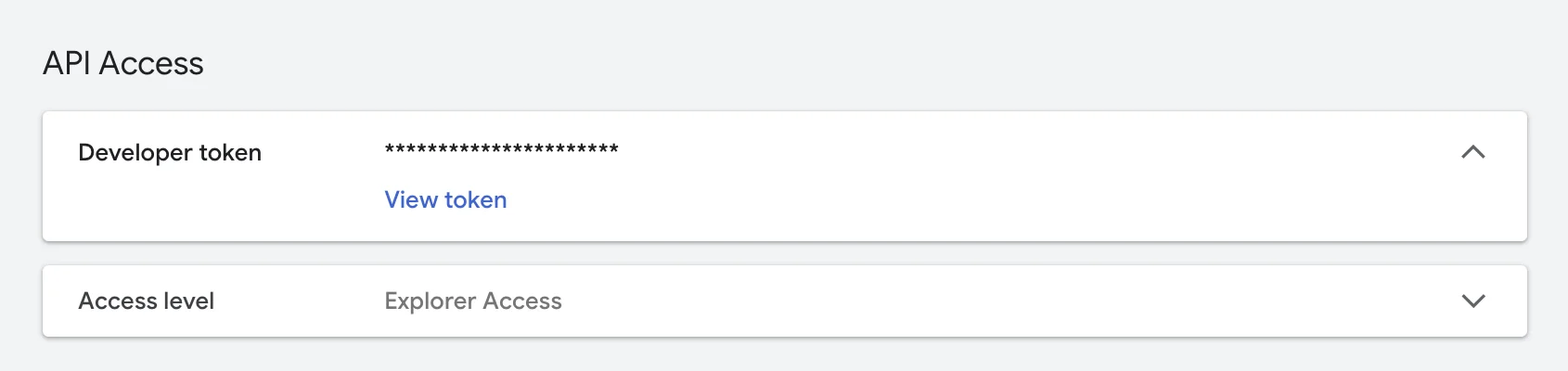
Explorer is a perfectly decent entry ticket, and I ran a full nightly reporting stack across every client account on it for a year. It's also exactly where you first feel the ceiling, because any call to a service Explorer doesn't cover returns DEVELOPER_TOKEN_NOT_APPROVED. That error name is, incidentally, a leftover from the old system: the token decides nothing any more, but the message hasn't changed.
Before requesting an upgrade, use whatever level you have to confirm that authentication and basic connectivity work. If a call doesn't go through even here, the problem is your configuration, not your access level. That whole chain, including the choice between the desktop and web OAuth flows and the 7-day refresh token trap, is covered in the Google Ads API authentication guide.
Step 2 — Brand verification, screen by screen
In July 2026 this step was optional, a way to speed up an application stuck in Pending. Today it's a prerequisite for new Basic and Standard applications. If you already have approved access, you're exempt and there's nothing to do.
Brand verification is part of the wider OAuth App verification process and, for most developers, it's self-service with no human review on that side. The screens below are from my own project, and the flow hasn't changed since July.
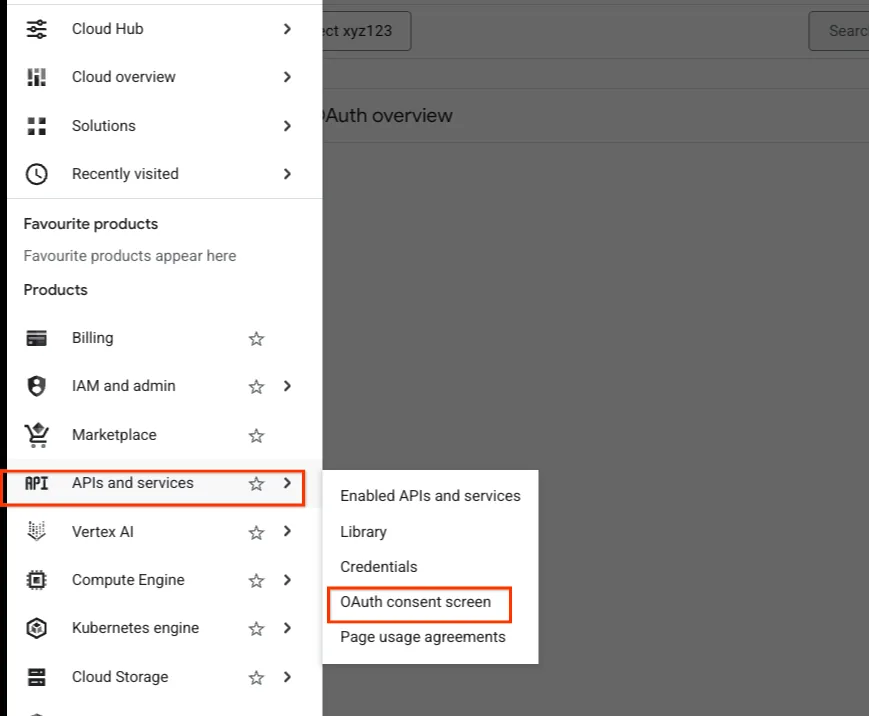
1. Open the OAuth consent screen. In Google Cloud Console, select your project, then APIs and services in the left menu, then OAuth consent screen. That drops you into the Google Auth Platform part of the console.
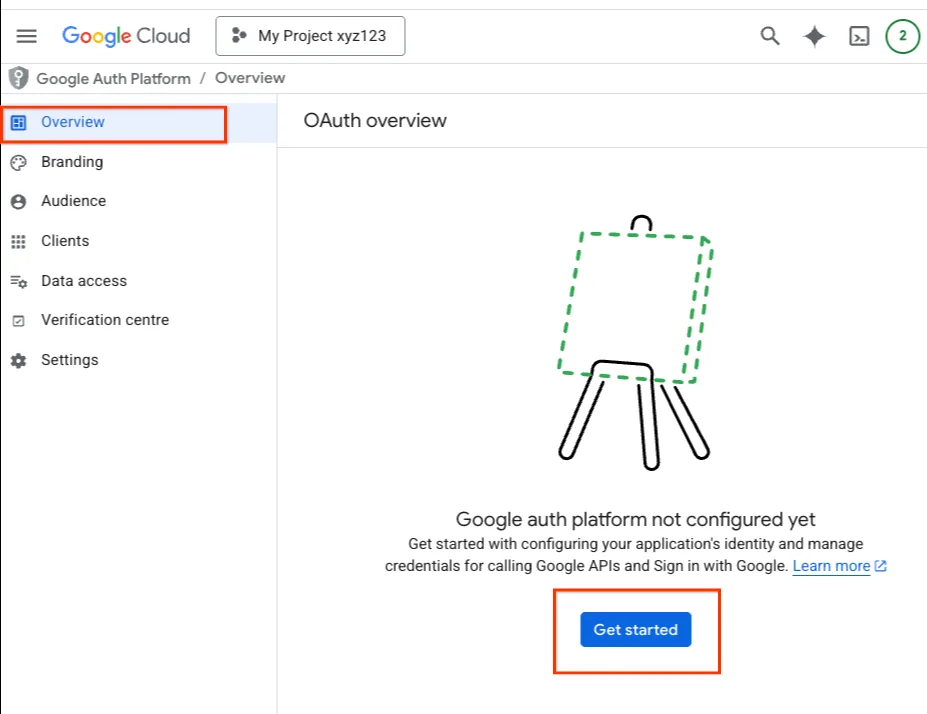
2. Click Get started if the platform isn't configured. If you've never set up OAuth consent for this project, you'll land on an empty Overview screen with a Get started button.
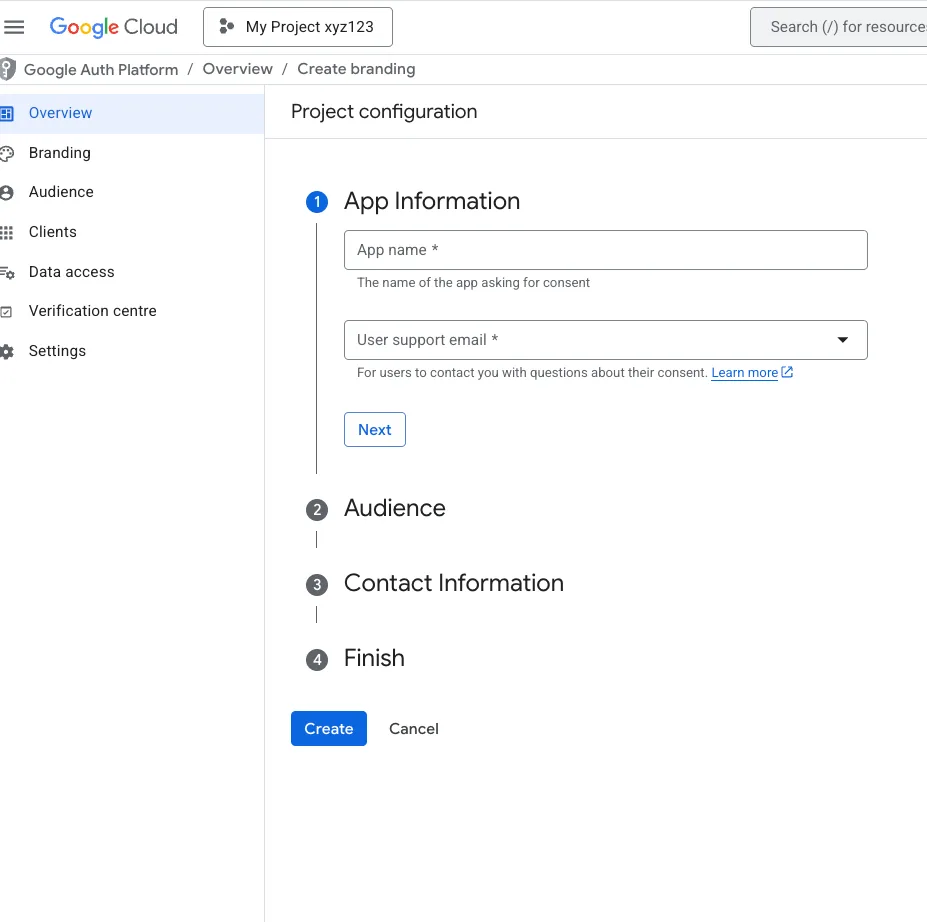
3. Fill in the project configuration. Four short sections: App Information (app name and support email), Audience, Contact Information, and Finish, then Create.
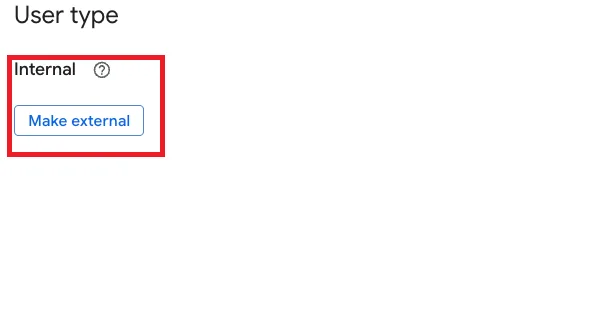
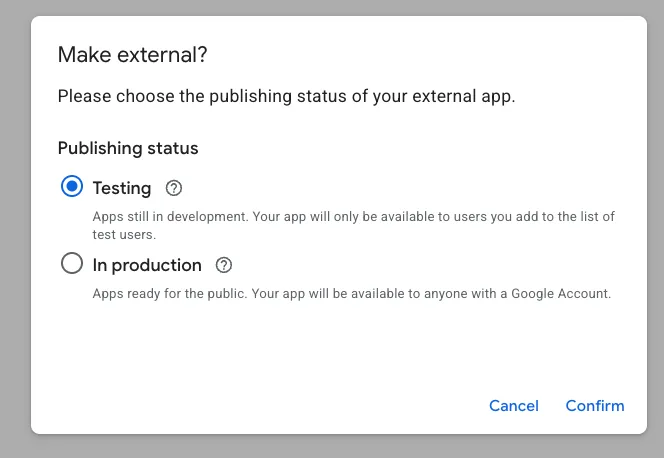
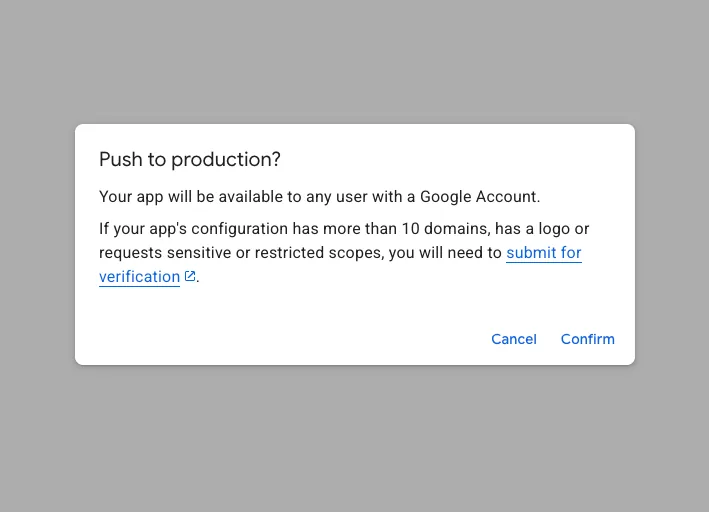
4. Switch User type to External and status to In production. On the Audience tab, if it says Internal, click Make external. Google's documentation is explicit that for this review the User type has to be External and the publishing status In production, even if your tool is purely internal. In the dialog, pick In production and confirm Push to production.
This is the same screen that kills refresh tokens
Setting the publishing status to In production isn't just a formality for verification. If the project stays in Testing mode, refresh tokens issued from it die after 7 days and your scripts quietly stop working. That mistake once cost me a dead Merchant Center token in the middle of a nightly job. Since you're here anyway, this step fixes that too.
5. Fill in the Branding tab. This is what users see on the consent screen: your app's home page, links to your privacy policy and terms, authorized domains, and a contact email. Click Save.
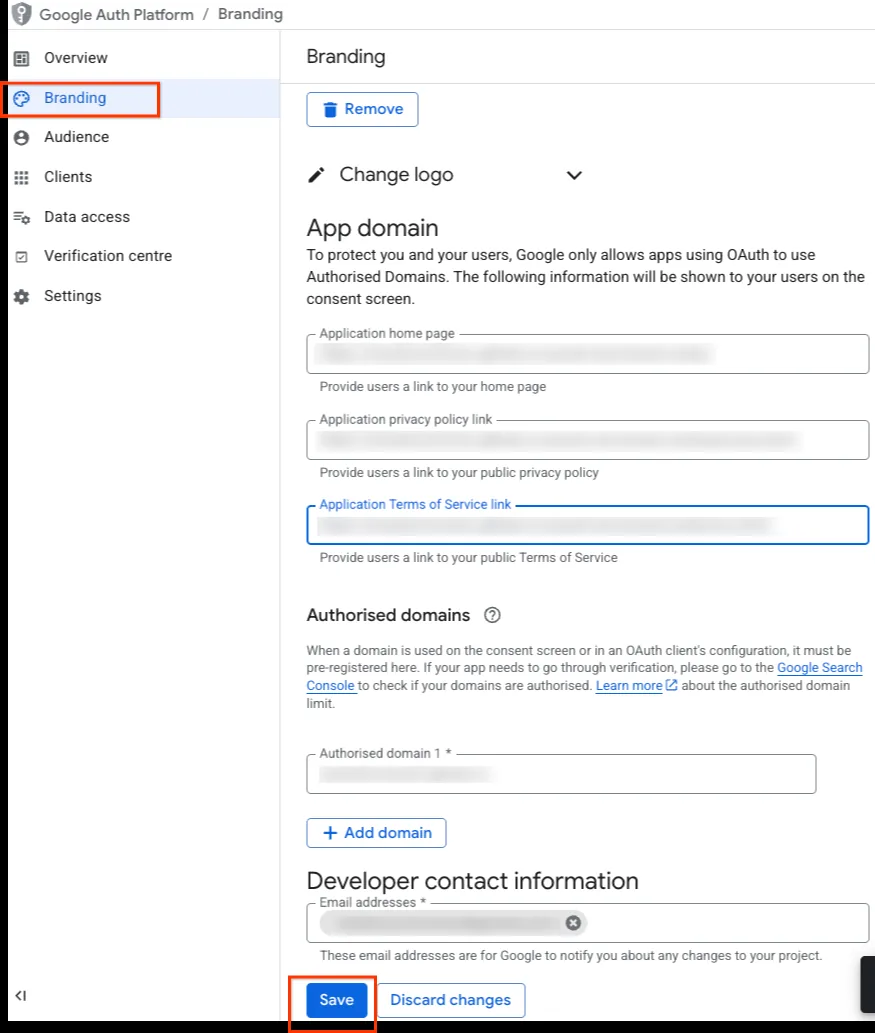
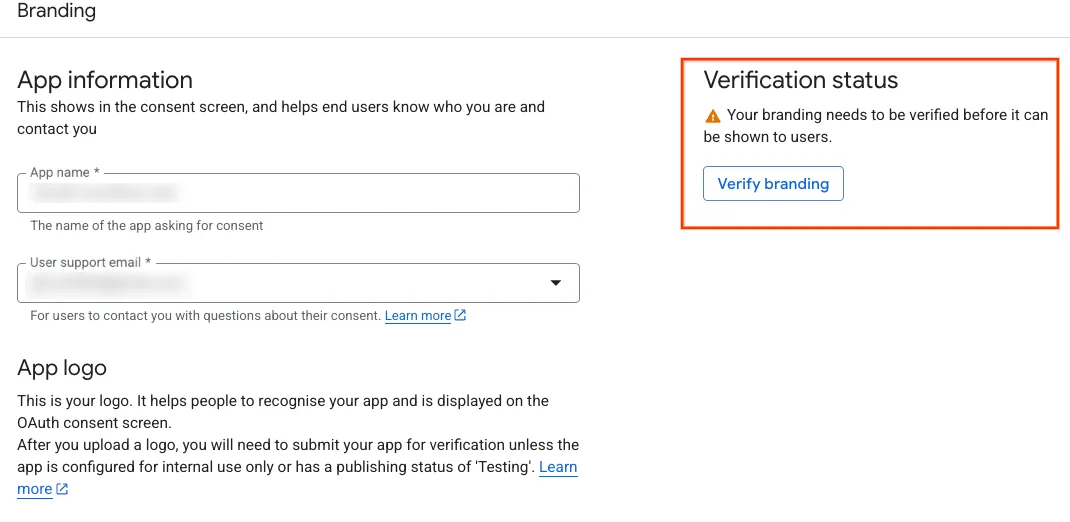
6. Click Verify branding. The button sits in the top right of the Branding tab, in the Verification status card.
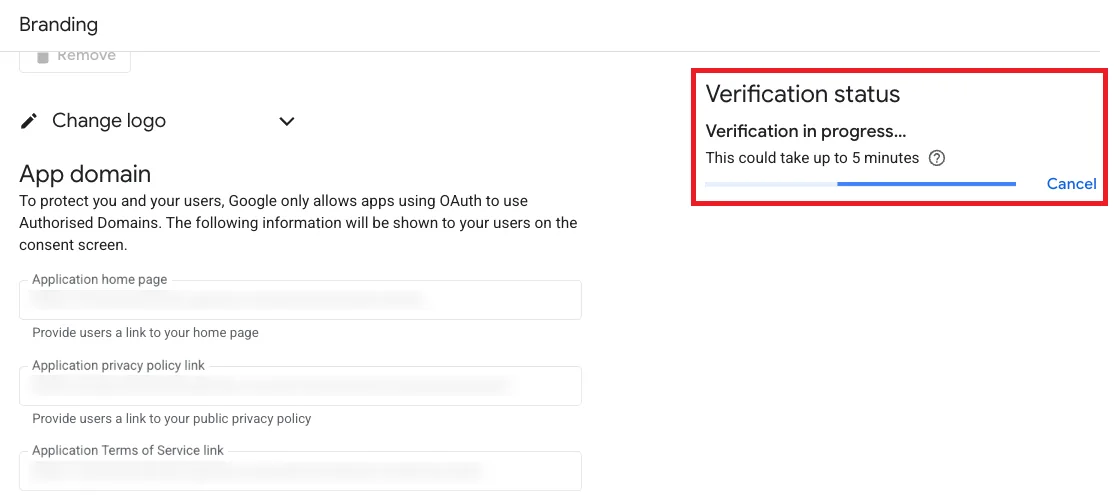
7. Wait a few minutes. Verification is automatic and the interface says it can take up to 5 minutes. If it errors out, fix whatever it asks for (usually the domains or the links) and run it again.
8. Publish the verified branding. Once verification passes, click Publish branding. Don't sit on this: a verified result expires after 7 days if you don't publish it.
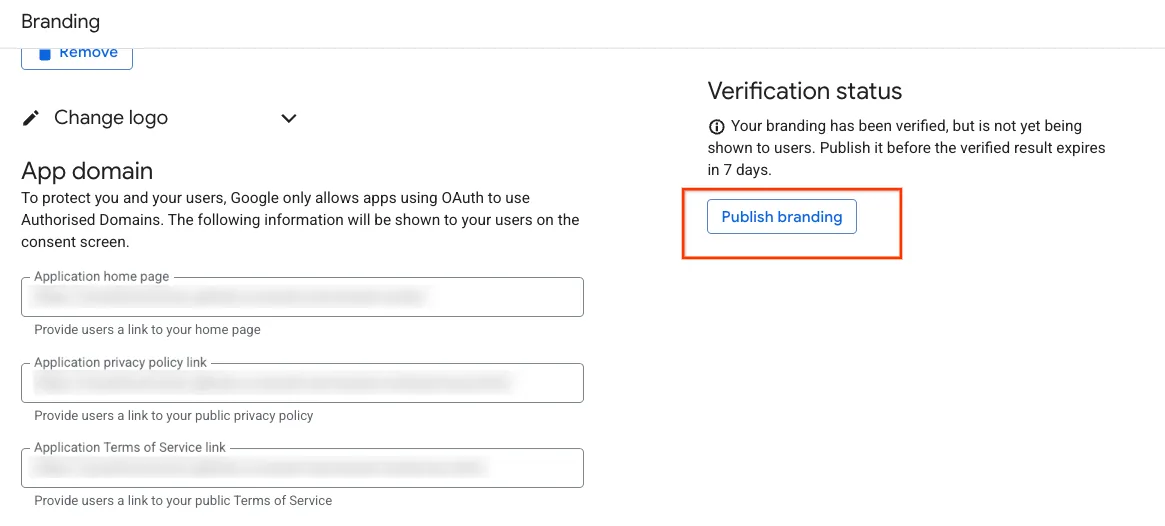
9. Done: the project is brand verified. The status card now shows a green confirmation that branding is verified and visible to users.
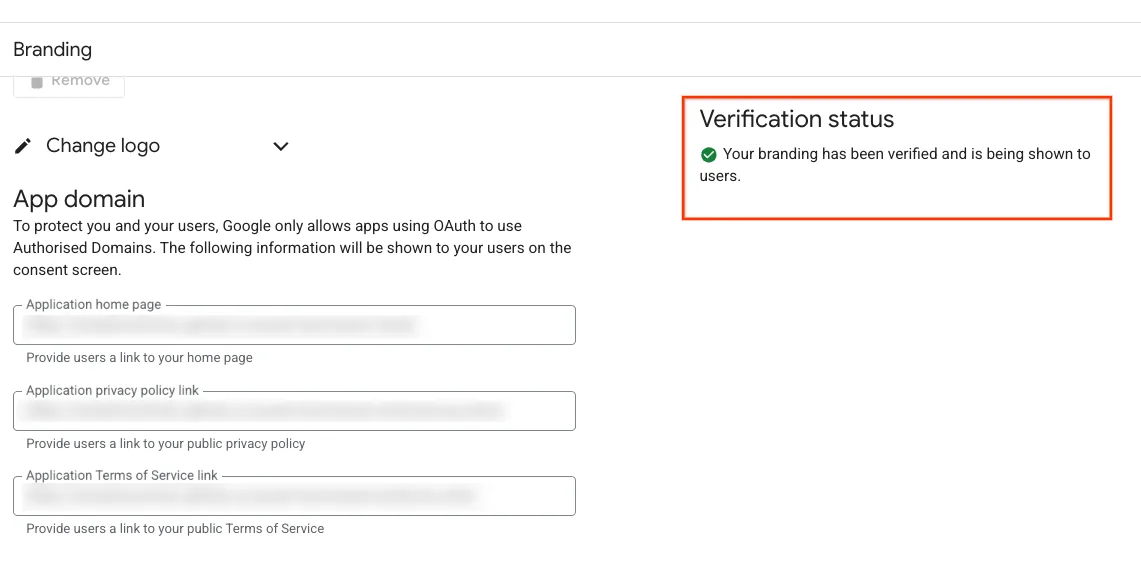
If your Cloud project already went through brand verification for any other Google API, you don't need to repeat it. And if you have several Cloud projects, verify the one you actually authenticate from, since that's the project the access level gets assigned to.
Step 3 — Requesting Basic access
With the project verified, the upgrade is requested in Google Cloud Console, on that project's Google Ads API page. Google says Basic approval is now automated and arrives within minutes of brand verification. That's a real difference from the old process, where a manual review officially took up to 5 business days with no visibility into where you stood.
What hasn't changed is what you should write about yourself. Even with an automated decision, your use case description stays on the record and starts to matter the moment anything gets escalated to a human. Five things worth doing properly:
If your application comes back for more information
Mine did. It went in at the start of August, came back for more information, and approval only landed after a second round, in September. That's not a disaster, but it is where most of the time gets lost if you react the wrong way.
Three things I took away from that round:
Don't resubmit the form with the same answers. The message you get says so explicitly, and it means it literally: you'll receive the same reply a second time. Answer in the existing thread, on the same case number.
Check where the correspondence actually landed. In my case the reply went to an address that wasn't the developer contact email configured on the account, so it sat for weeks in a mailbox I don't check daily. Line those two addresses up before you even apply.
Offer a detailed description of your business model. The follow-up message usually offers this as an alternative. Take it: who you are, who your clients are, where revenue comes from, what the tool does, who uses it, how many operations a day you expect, and why the current ceiling gets in the way. That's a few paragraphs, not an essay, but concrete numbers are what move it.
What Basic Access gives you, and what it still doesn't
Basic gives you full API functionality across every client account you reach, up to 15,000 operations a day. That includes what Explorer explicitly leaves out: the planning services, account creation, user management, and billing.
The number itself isn't what hurts most on Explorer. The 2,880 ceiling is shared across every account under your manager account. One larger restructure for one client eats the daily quota and blocks work on everyone else until midnight. Basic takes that off the table.
Keyword Planner was the first thing to hit the ceiling for me. Here's what actually changed, the same call before and after:
# Explorer
GenerateKeywordIdeas  ->  DEVELOPER_TOKEN_NOT_APPROVED
   "This method is not allowed for use with explorer access."

# Basic
GenerateKeywordIdeas  ->  599 keyword ideas
   used motorcycles     12,100/mo   comp=LOW   bid  7.84-13.49
   motorcycle helmets    5,400/mo   comp=LOW   bid  3.49-22.82
   riding gear           2,900/mo   comp=LOW   bid  3.03-24.04
Two seed terms, 599 ideas with monthly volume, competition level, and top-of-page bid ranges. Alongside it, GenerateKeywordHistoricalMetrics works too, returning volume month by month for twelve months back. For seasonal clients that's a budget calendar you simply couldn't pull programmatically before: in one account, one term swings 2.2x between the year's peak and trough, another 4.3x. Two different calendars, same advertiser.
While Basic was pending, I estimated volume from Search Console data and the platform's own benchmark CPC. That's a perfectly usable workaround and I'd recommend it to anyone waiting, but it is a workaround.
What Basic still doesn't unlock
ReachPlanService — reach planning for YouTube and Display (reach curves, frequency, CPM projections) — stays closed even on Basic. The call returns ACTION_NOT_PERMITTED with "not authorized to call ReachPlanningService." That's a separate allowlist, not something that ships with an access level, so if API-driven video planning matters to you, budget for a separate request.
My day-to-day stack — reporting that generates itself every morning, pacing, performance, and disapproval monitoring across every account — ran fine on Explorer too. The same mechanism handles automated offline conversion uploads for some clients, which I wrote about separately in the offline conversion import guide. For one person running dozens of accounts, this isn't a convenience. It's the only realistic way to keep monitoring at agency level rather than at whatever-you-manage-to-open-in-a-browser level. That monitoring is part of how I run client accounts under Google Ads management, and I set up the same stack for agencies and teams running multiple accounts through Google Ads consulting.
Two things to check in your code, not in this guide
The access described here applies to Google Ads accounts, not the Merchant Center product feed. But if the same automation stack also pulls product data or manages Search campaigns through the API, two things changed in August and September 2026 and are worth checking before something starts failing quietly.
- August 18, 2026: the Content API for Shopping was permanently shut down. If any part of your automation still calls that older API for product feeds, it has to move to the Merchant API, or product data goes stale and into disapproval.
- September 2026: Google removed language targeting at the Search campaign level. If your code sets or reads the language criterion (CampaignCriterion) on Search campaigns through the Google Ads API, that setting no longer affects delivery — Google now matches on ad language, landing page language, and the languages a user understands. For PMax, language still applies, but only to YouTube, Display, Discover and Gmail, not the Search Network. One-language-per-campaign structures keep working normally; the language criterion on Search just no longer does anything.
Standard Access, and when it's actually worth asking
Standard removes the total daily ceiling. Individual services keep their own rate limits, but the operation count is no longer capped. There are five conditions, and they're worth knowing up front, because two of them are routinely missed.
The first is already holding Basic. The second is compliance with RMF (Required Minimum Functionality), a list of features your tool has to implement. The third is a manual audit of your application, for which Google quotes around 10 business days. The fourth is demo access, if external users operate your tool. The fifth is demonstrated volume.
RMF probably doesn't apply to you
Google exempts the "Internal Use Only" category from every RMF requirement. If you're building strictly for your own agency and your own clients, and you don't sell it or expose it to third parties, the Creation, Management and Reporting columns of the RMF table read N/A for you. Reporting-only tools get their own, lighter exemption. Which means you don't have to build features you don't need just to pass an audit.
The fifth condition is the one that sinks most requests, and it's phrased without any hedging:
If your volume does not consistently near the 15,000 daily limit, your request will be denied.
In other words, Standard isn't a reward for seriousness. It's a fix for a bottleneck you have to prove you have. For an agency running ten to thirty accounts with nightly reporting, daily consumption sits in the hundreds of operations, nowhere near the ceiling. The request would be denied, and a denial stays on the record.
Practical advice: measure before you ask. Consumption is visible in Google Cloud Console, under the metrics for the Google Ads API. If you're not approaching the ceiling, Basic is the right level, and the RMF exemption doesn't expire, so you can ask for Standard the day your volume genuinely justifies it.
Frequently asked questions
Do I still need a developer token for the Google Ads API?▼
How long does Basic Access approval take now?▼
Is brand verification mandatory to get Basic Access?▼
What's the difference between Test, Explorer, Basic, and Standard access?▼
Does Basic Access unlock every service?▼
What if I don't have a Google Cloud project yet?▼
Does one Cloud project cover all my client accounts?▼
Do I need to know how to code to use the Google Ads API?▼
Want API-driven monitoring for your accounts?
I set up API access, the Cloud project, and the nightly automation described in this guide — budget pacing checks, performance pulls, disapproval alerts, search-term mining — for agencies and teams running multiple Google Ads accounts under one manager account.
Schedule a free consultationGoogle Ads Consulting
A one-off audit or ongoing strategy partnership.
Google Ads Management
Full account management, including API-driven monitoring.
Offline Conversion Import for B2B
Feeding closed deals back into Google Ads via the API.
GA4 and Google Ads Integration
How to connect GA4 data to Google Ads optimization.
Conversion Tracking Guide
Complete GTM, GA4, and Google Ads tag setup.
Free tools
Check your own account, no email required
Four tools that run in the browser: a 38-point Performance Max review, a budget calculator, a GA4 audience framework and an account audit checklist.
Free tools, no form
The tools I built for my own accounts
I built these because I needed them while working on accounts. They run in the browser, they don't ask for an email, and they show the whole result on the spot.
PMax Check
38 checkpoints, weighted score per group
Budget calculator
what the account needs per phase
GA4 audience framework
25 lists, 6 pillars
Audit checklist
50 items to run on any account