
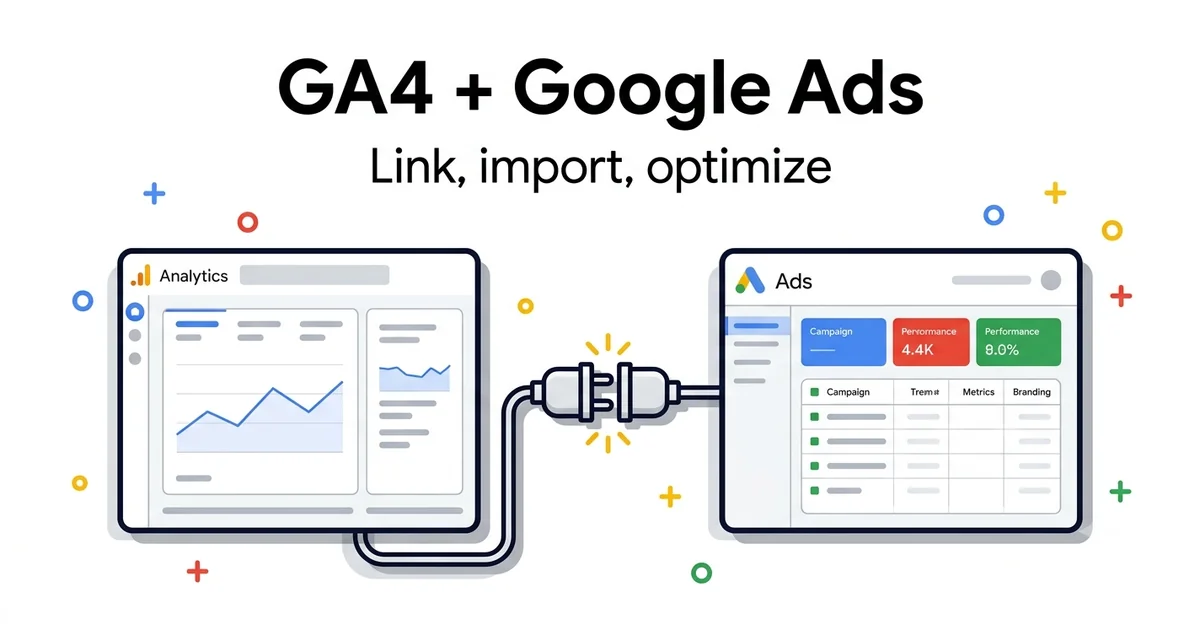
TL;DR — GA4 + Google Ads 2026
GA4 + Google Ads integration is the backbone of modern Smart Bidding. Without a correct link, key-event import, and Consent Mode v2, the algorithm bids blind. This guide walks 7 exact steps — from property linking to conversion verification 48h later.
7
setup steps
30 min
full integration time
24-48h
before conversions show up
+30%
typical Smart Bidding lift
Based on 10+ accounts managed (UK, Serbia, DACH) and official Google documentation (2024–2026).
Quick answer
What is GA4 + Google Ads integration?
GA4 + Google Ads integration is a two-way link between a Google Analytics 4 property and a Google Ads account that enables importing GA4 conversions (key events) into Google Ads, sharing audiences for remarketing, and feeding a richer signal set to the Smart Bidding algorithm. The link is activated in GA4 Admin → Product links and verified after 24–48h.
Since July 2023, when Universal Analytics was sunset, GA4 is Google's only analytics stack — and the only source of GA-based conversions for Google Ads. Yet the GA4 ↔ Google Ads link is still the most commonly misconfigured part of the tracking stack on the accounts I take over.
The typical symptom: the client has GA4, sees purchase events, has Google Ads campaigns — but when you check the Google Ads Conversions page, either nothing is there, or both a "Google Ads conversion" and a "GA4 purchase" are firing simultaneously, generating duplicates. Smart Bidding tries to optimize against muddled metrics and performance stalls.
This guide covers the exact 7-step setup that works in 2026 — with Consent Mode v2 mandatory since March 2024, Data Manager changes in the Google Ads UI, and the most common mistakes I see on accounts across Serbia and the UK. If you'd rather have someone experienced check and set up your entire tracking stack, see our consulting service.
What is GA4 + Google Ads integration
The integration is technically a "Google Ads link" between a GA4 property and a Google Ads account. Once active, three types of data flow between the two platforms:
1. Conversions
GA4 Key Events → Google Ads
A key event from GA4 (purchase, generate_lead) can be imported as a Google Ads conversion. Smart Bidding uses this conversion for optimization.
2. Audiences
GA4 → Google Ads remarketing
An audience created in GA4 ("cart abandoners", "30-day viewers") syncs automatically into Google Ads Audience Manager.
3. Session data
Google Ads click data → GA4
GCLID (Google Click ID) maps into GA4, so the Acquisition report shows the campaign, ad group, and keyword that drove the visit.
Link ≠ Conversion import
Linking the property only enables the ability to import. Conversions aren't imported automatically — you must explicitly import them via Data Manager. The most common mistake I see: client linked GA4, assumed they were done, conversions never actually got imported.
Prerequisites (before you start)
Before the 7 steps, confirm you have:
- Admin access to the GA4 property — "Edit" role is not enough to link
- Admin access to the Google Ads account — standard isn't enough for the Link step
- Active GA4 property with at least 14 days of data and at least one defined key event
- Enhanced Measurement enabled in GA4 (Admin → Data Streams → Web stream → Enhanced measurement)
- Google Tag (gtag.js) or GTM correctly deployed on the site — verify via Tag Assistant
- Consent Mode v2 implemented if targeting EU traffic (mandatory since March 2024)
For eCommerce: also verify that the purchase event fires with correct value and currency parameters. Without value, Smart Bidding can't run tROAS optimization.
7 setup steps
Link the GA4 property to your Google Ads account
Where: GA4 → Admin → Property → Product links → Google Ads links → Link
Select the Google Ads Customer ID (account or MCC). Make sure to tick both boxes:
- Enable Personalized Advertising — without this, audience transfer won't work
- Enable Auto-Tagging — appends GCLID to every Google Ads link automatically
Click "Submit". Status "Linked" should appear immediately.
Enable Auto-Tagging in Google Ads
Where: Google Ads → Admin → Account settings → Auto-tagging
Tick "Tag the URL that people click through from my ad". Usually on by default, but I check every new account — I've found 3 accounts in the last year where it was turned off.
Without auto-tagging, GCLID doesn't get appended to URLs and attribution between Google Ads and GA4 breaks.
Set up Key Events in GA4
Where: GA4 → Admin → Events → Mark as key event (toggle)
Flag as key event:
- eCommerce:
purchase(with value + currency) - Lead Gen:
generate_leadorform_submit - SaaS: a custom event like
trial_signupordemo_booked
Note: in March 2024, GA4 renamed "conversions" to "key events". The function is identical.
Import GA4 Key Events as Google Ads conversions
Where: Google Ads → Tools → Data Manager → Connected products → Google Analytics 4 → Import conversions
Click sequence:
- Select the GA4 property from the connected list
- Select one or more key events to import
- Click "Import"
After import, the conversion appears under Google Ads → Goals → Summary with source "Google Analytics (GA4)".
Set Primary vs Secondary conversions
Where: Google Ads → Goals → Conversions → Goal settings
Rule: only one conversion should be Primary (that's what Smart Bidding optimizes for). All others go to Secondary (observation only, don't affect bidding).
Count setting:
- "One" for leads, form submissions, phone calls (one lead per session is enough)
- "Every" for eCommerce (a buyer can purchase 2 products in the same session, both count)
Mistake I see all the time: eCommerce client has "One" count and Smart Bidding only sees half the revenue.
Share GA4 audiences with Google Ads
Where: GA4 → Admin → Audiences → New audience
If the link is active (Step 1), audiences sync to Google Ads Audience Manager automatically within 24h. Minimum 1,000 active users required for an audience to become eligible for remarketing.
Audiences I typically share: cart abandoners (7 days), 30-day all users, purchased last 90 days, video viewers (50%).
Verify the data flow (24–48h)
After 24–48h (not sooner), check:
- Google Ads → Goals → Conversions — status should read "Recording conversions" (green dot)
- Campaign → Conv. (all) column — numbers should be populated
- GA4 → Acquisition → Traffic acquisition — "Paid Search" source should appear with campaign names
- GA4 → Advertising → All channels — Google Ads campaigns with cost data
If "No data" after 48h — jump to the Troubleshooting section below.
GA4 event → Google Ads action mapping
Not every GA4 event should become a Google Ads conversion. Here's what to import for the most common business models:
| Business model | GA4 Key Event | Google Ads classification | Count |
|---|---|---|---|
| eCommerce | purchase | Primary (Purchase) | Every |
| eCommerce | add_to_cart | Secondary (Observation) | One |
| Lead Gen | generate_lead | Primary (Submit lead form) | One |
| Local Services | phone_call (custom) | Primary (Phone call lead) | One |
| SaaS | trial_signup (custom) | Primary (Sign-up) | One |
| SaaS | purchase (plan subscribe) | Primary (Subscription) | Every |
| Content / Blog | newsletter_signup | Secondary (Observation) | One |
Principle: one Primary conversion per business model. Keep the rest on Secondary so they show in reports but don't confuse Smart Bidding.
Attribution model: Ads-preferred vs Data-driven
After import, an important question is which attribution model to use. GA4 uses Data-driven by default since 2023. Google Ads has its own set of options:
| Model | How it works | When to use |
|---|---|---|
| Data-driven | ML model assigns per-touchpoint credit based on actual customer paths | Default for accounts with 300+ conv/30 days |
| Ads-preferred last click | Credit goes to the last Google Ads click before conversion | Smaller accounts (<300 conv/month) |
| Last click (GA4 default) | All channels receive credit based on the last non-direct click | Cross-channel analysis in GA4, not Google Ads bidding |
Practical recommendation
For Google Ads bidding, use Data-driven attribution if you have the volume (Google will block it if you don't). For smaller accounts, Ads-preferred last click. Don't mix models between GA4 and Google Ads — expect a small gap in numbers (5–15% is normal).
Consent Mode v2 (EU mandatory)
Since March 6, 2024, Google requires Consent Mode v2 for all ads targeting the EEA (EU + Norway, Iceland, Liechtenstein) and the UK. Without it, Google Ads can't use personalized advertising or remarketing for those users.
What your CMP (Consent Management Platform) must pass to gtag:
ad_storage— granted/denied (for cookie-based ads)ad_user_data— granted/denied (for sending user data to Google)ad_personalization— granted/denied (for personalized advertising)analytics_storage— granted/denied (for GA4 tracking)
Two parameters were added (ad_user_data and ad_personalization) in v2 over v1. Popular CMPs (Cookiebot, Iubenda, OneTrust, Usercentrics) ship with a Consent Mode v2 module — it must be explicitly activated in their admin panel.
How to verify it's working
Open Chrome DevTools → Network tab → filter "collect" → check the gcs parameter in the GA4 request. If gcs=G111, Consent v2 is working correctly. If gcs=G100 or missing — the implementation is incomplete.
Common mistakes
Mistake #1
Duplicate: Google Ads conversion tag + GA4 purchase import
Fix: Either the legacy native Google Ads tag on the thank-you page, or the GA4 imported conversion — not both. Recommendation: disable the Google Ads conversion tag and keep only the GA4 import, since GA4 as single source of truth cleans up attribution.
Mistake #2
Multiple Primary conversions — Smart Bidding gets confused
Fix: Only one conversion should be Primary. Adding multiple Primaries (e.g. purchase + add_to_cart + newsletter) mixes signals and tROAS breaks down.
Mistake #3
Missing value/currency on the purchase event
Fix: Without value and currency parameters, tROAS can't operate. Verify via GA4 DebugView that values fire. For Shopify/WooCommerce — the standard GTM template ships with this by default.
Mistake #4
Wrong Count setting
Fix: eCommerce must be "Every" (every purchase counts). Leads must be "One" (you don't want one lead to eat 3× your bid budget). Default is "One" — always switch for eCommerce.
Mistake #5
Consent Mode v1 (or missing entirely)
Fix: v2 is mandatory in the EU. Effects of v1 in 2026: remarketing lists don't populate (EU users don't enter them), Smart Bidding has fewer signals, conversion modeling breaks.
Troubleshooting
Conversion won't import from GA4
- Check that the event is flagged as "key event" in GA4 (not just a regular event)
- Check there's data — the event must have fired in the last 30 days
- Check Link status in GA4 Admin → Product links → Google Ads links
- Wait 24h after the first import — Google caches the list
"No data" on the imported conversion
- Check that Google Ads campaigns are actually driving traffic (Conv. (all) column)
- Check that Auto-Tagging is working — GCLID must be in the URL
- Check Consent Mode — if users denied, there will be no data
- Attribution delay: eCommerce conversions can take 3–7 days to fully populate
Audience size = 0 in Google Ads
- Minimum 1,000 active users required for an audience to be eligible
- "Enable Personalized Advertising" must be ticked on the Link
- Audience retention period (30/60/540 days) must be set
- Wait 24h after creating the audience
GA4 conversion count ≠ Google Ads count
- A 5–15% gap is normal (different attribution model, conversion windows)
- Gap > 30% — check attribution settings in both tools
- Google Ads is click-based, GA4 can be cross-device or cross-channel
- Note: Google Ads count is click-attributed, GA4 count is last-click GA4 — expect a gap
FAQ
When will GA4 conversions start showing in Google Ads?▼
Does GA4 replace Google Ads conversion tracking?▼
What's the difference between Primary and Secondary conversions?▼
What is Ads-preferred attribution?▼
Do I need Consent Mode v2 for non-EU markets?▼
Can I import multiple GA4 properties into one Google Ads account?▼
How much does GA4 + Google Ads integration cost?▼
Your GA4 + Google Ads integration incomplete?
Free comprehensive audit of your entire site's tracking system — link status, Primary/Secondary setup, Consent Mode v2, attribution model, and the full data flow. Typically reveals 3–5 mistakes costing conversions. Part of our Google Ads audit service.
Submit your free audit requestRelated guides
Conversion Tracking guide
Enhanced conversions, server-side, debug procedure
Smart Bidding guide
tROAS, tCPA and how Smart Bidding uses them
Remarketing guide
GA4 audiences for 4× ROAS campaigns
Google Ads optimization — 30 tactics
Post-tracking playbook to scale results
Google Ads audit checklist
80+ points for a full account audit
20 Google Ads mistakes
Tracking mistakes that cost conversions
Free tools
Check your own account, no email required
Four tools that run in the browser: a 38-point Performance Max review, a budget calculator, a GA4 audience framework and an account audit checklist.
Free tools, no form
The tools I built for my own accounts
I built these because I needed them while working on accounts. They run in the browser, they don't ask for an email, and they show the whole result on the spot.
PMax Check
38 checkpoints, weighted score per group
Budget calculator
what the account needs per phase
GA4 audience framework
25 lists, 6 pillars
Audit checklist
50 items to run on any account