
![Google Ads API Basic Access: Step-by-Step Guide [2026]](/_next/image?url=%2Fblog%2Fgoogle-ads-api-basic-access-vodic.webp&w=3840&q=75)
In short
Getting a Google Ads API developer token approved for Basic Access used to mean submitting a form and waiting up to 5 business days, with almost no visibility into where you stood. On July 7, 2026, Google launched a brand verification pilot that can cut a pending review down to a few hours. Here's the exact path: token, application, Cloud project link, verification.
Hours
review time with brand verification
15,000
operations/day on Basic Access
4
steps from token to approval
$0
cost of the application itself
Quick answer
Google Ads API Basic Access is the approval level that lets a developer token pull and push data against live, production Google Ads accounts — reporting, campaign management, automation — up to 15,000 operations a day. You get it by generating a developer token in your manager account's API Center, submitting the Basic Access application with a clear description of your use case, and waiting for Google's review. Since July 7, 2026, if your application is sitting in Pending status, completing brand verification on your linked Google Cloud project can get it reviewed within hours instead of days.
Every morning, before I look at a single campaign by hand, a script has already checked all ten of my client accounts overnight — budget pacing, performance swings, disapproved ads, search terms worth turning into keywords or negatives. That script only exists because of one thing sitting quietly in my manager account: an approved Google Ads API developer token. Without it, I'd be logging into ten separate accounts every day just to see what changed. With it, one person can run monitoring that used to take a small team.
The developer token is the entry ticket to all of that — the API is what makes agency-grade automation possible for a single operator, whether you're pulling performance data, pushing bid changes, or feeding closed deals back into Google Ads (I wrote about that last part in the offline conversion import guide, which also runs through the API under the hood). My token currently runs at Explorer access — the level Google grants automatically — and it covers all of that nightly reporting. But the moment you ask for more, say Keyword Planner calls, you hit a wall: DEVELOPER_TOKEN_NOT_APPROVED. Full functionality means Basic Access, and that means an application and a review that officially takes up to 5 business days, with no status bar and no estimate of how much longer you'll wait.
That changed on July 7, 2026. Google launched a pilot that lets you complete brand verification on your Cloud project while your Basic Access application is pending, and get a review within hours. This guide walks through the whole path — token, application, Cloud project link, and the new verification shortcut — based on how I actually set mine up.
Prerequisites
Two things need to exist before you touch the application form. Neither costs money, and if you're already running Google Ads, you probably have the first one.
Prerequisite 1
A Google Ads account — ideally a manager account
The developer token lives at the manager (MCC) level, not on an individual client account. If you manage more than one account, set up an MCC first — one token issued there gives you API access to every client account linked underneath it. That's the whole reason the API scales for an agency: one approval, all accounts.
Prerequisite 2
A Google Cloud project
You need one anyway to generate the OAuth2 client ID and secret the API uses to authenticate — so this isn't extra work created by the new pilot, it's a step you'd take regardless. Free tier is enough; the Ads API itself doesn't require billing to be enabled on the project.
Step 1 — Get your developer token
In your manager account, open the API Center — under Admin in the current interface (older accounts may still show it under Tools & Settings). This is where the developer token lives, and where its current access level is shown. If you've never applied before, generating the token itself is instant — you don't need approval to get a token, only to use it against real accounts.
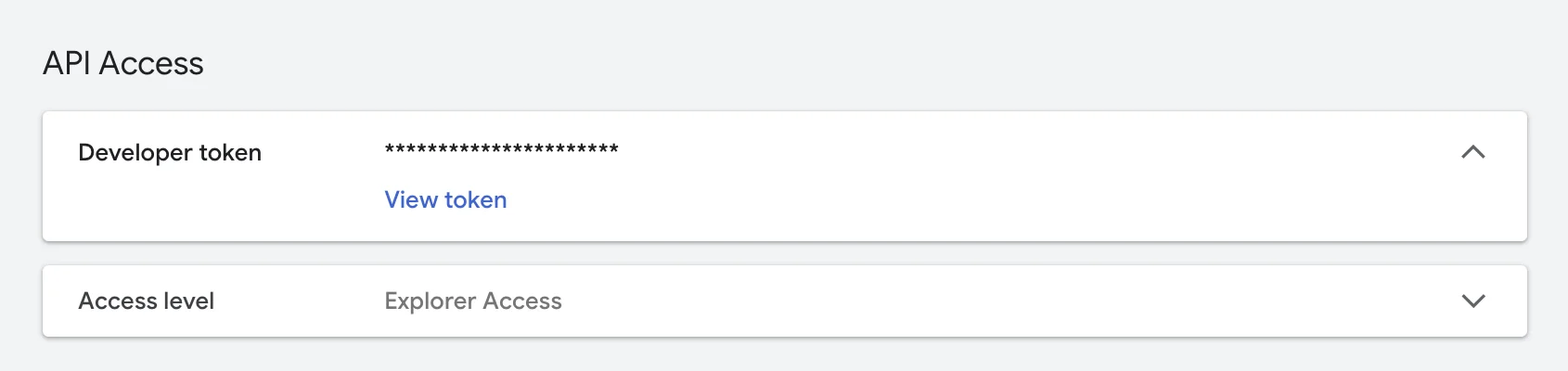
A brand new token starts at Test Account Access: it works only against test accounts you create for development and can't see a byte of production data. Google then automatically grants many accounts Explorer Access — no application needed. That's the level my token is at in the screenshot above: it works against real, production accounts, but with a cap of 2,880 operations per day and no access to planning tools (Keyword Planner), account creation, user management, or billing services.
Explorer is a perfectly usable entry ticket — my entire nightly reporting stack runs on it. It's also exactly where you'll first feel the ceiling, because any call to a service Explorer doesn't cover returns DEVELOPER_TOKEN_NOT_APPROVED. Before you apply for Basic, use this level to confirm your authentication and basic connection work: if a call fails here, the problem is your configuration, not your access level.
From my experience
Don't wait for Basic Access to start building. Write and test your first scripts against a test account while the application is under review — reporting pulls, a basic budget check, whatever your actual use case is. By the time Basic Access comes through, you've already worked out the authentication flow and the obvious bugs, and you can point the same code at production accounts immediately.
Step 2 — The Basic Access application
In API Center, next to the developer token, there's a link to apply for Basic Access. The form asks what you plan to do with the API — and this is the part that actually determines how smoothly the review goes.
Why the wait was the problem
Google officially quotes up to 5 business days for the Basic review. In practice that's a week of the status just sitting on Pending — no estimated date, no sign anyone has picked it up, no "speed this up" button. I put off applying for months for exactly this reason: Explorer covered my day-to-day work, and a week of uncertainty didn't feel worth it. The brand verification pilot in Step 4 is what changes that math.
Step 3 — Link the token to a Cloud project
For brand verification to count toward your token, Google needs to know which Cloud project belongs to which developer token. You'd expect a form or a field for this — but per the official documentation, the association happens by simply making any API call that uses your developer token together with OAuth credentials from that Cloud project. That single call ties the two together.
The details that make this painless: the call can go through either the user authentication or the service account workflow, it can target a test or a production account, and it does not matter whether the call succeeds or fails. Your token's current access level doesn't matter either. The only thing that counts is that the token and the project's credentials show up in the same request.
You've probably already done this
If you tested your connection against a test account in Step 1 using your OAuth credentials, the association already happened without you noticing. If not, the simplest possible test call — listing the accounts under your MCC, say — does the job. If you run several Cloud projects, use the one your code actually calls from; that's the one worth verifying in the next step.
Step 4 — Brand verification (the July 2026 pilot)
This is the new part. On July 7, 2026, Anash P. Oommen of the Google Ads API Team announced on the Google Ads Developer Blog that developers with a pending Basic Access application can complete brand verification on their Cloud project and get reviewed "in the next few hours." Google cited "significant interest from our developer community for Google Ads API access" as the reason for building the shortcut.
Brand verification is part of the standard OAuth App verification process in Google Cloud Console and is self-service for most developers — you don't need to submit anything to a human or wait on a separate approval queue for it. It lives under the OAuth consent screen / Google Auth Platform → Branding section of your linked Cloud project.
The whole process, screen by screen
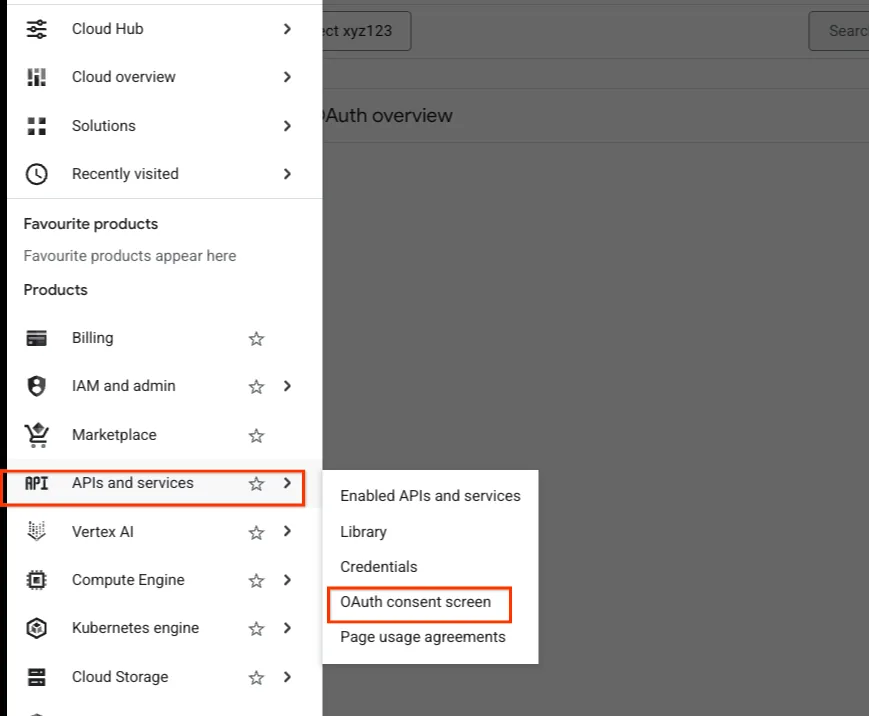
1. Open the OAuth consent screen. In Google Cloud Console, select your project, then go to APIs and services → OAuth consent screen in the left menu. That drops you into the Google Auth Platform section of the console.
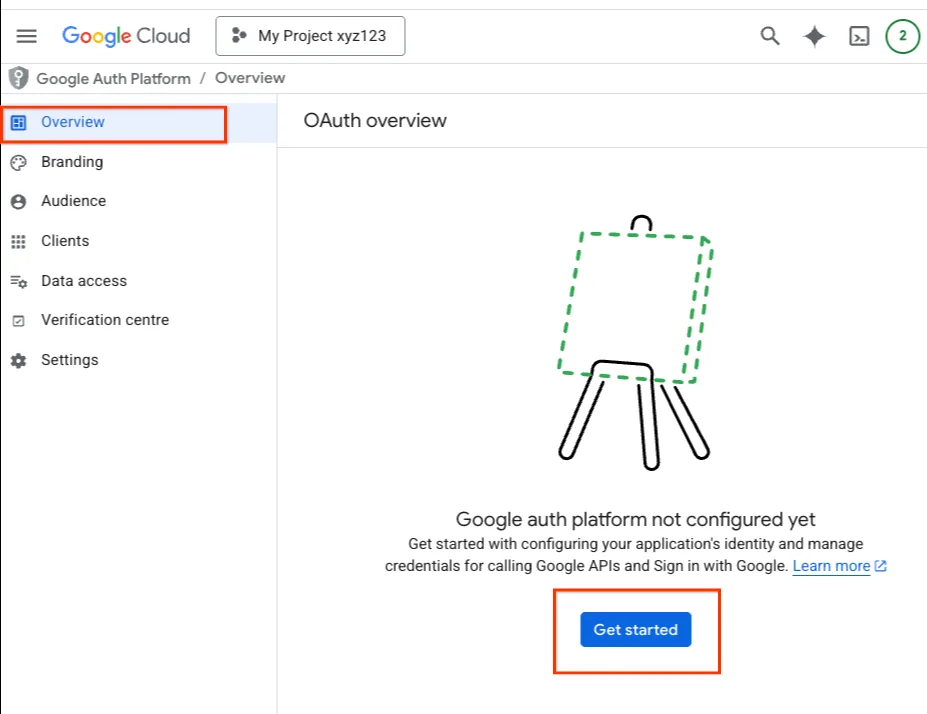
2. Click Get started if the platform isn't configured yet. If you've never set up OAuth consent for this project, you'll land on an empty Overview screen with a Get started button.
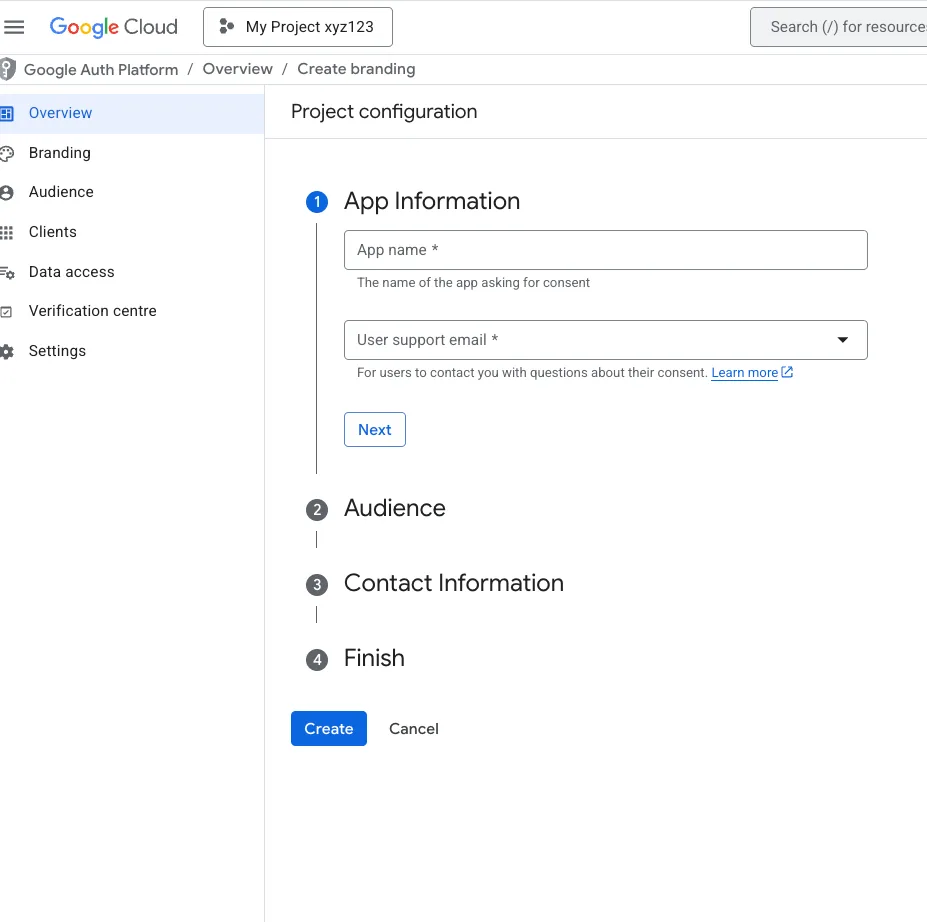
3. Fill in the project configuration. Four short sections — App Information (app name and support email), Audience, Contact Information, and Finish — then click Create.
4. Switch User type to External and publishing status to In production. On the Audience tab, if User type says Internal, click Make external. Google's documentation is explicit that for this review your User type must be External and publishing status In production — even if your tool is strictly internal. Pick In production in the dialog and confirm the Push to production prompt.
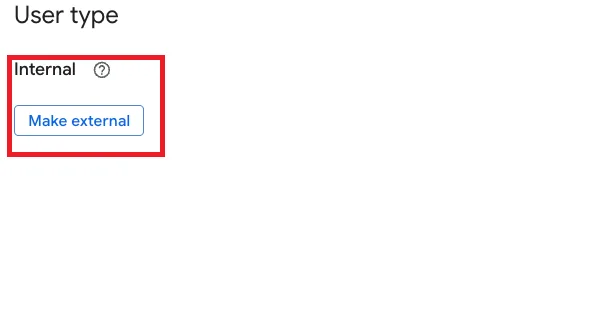
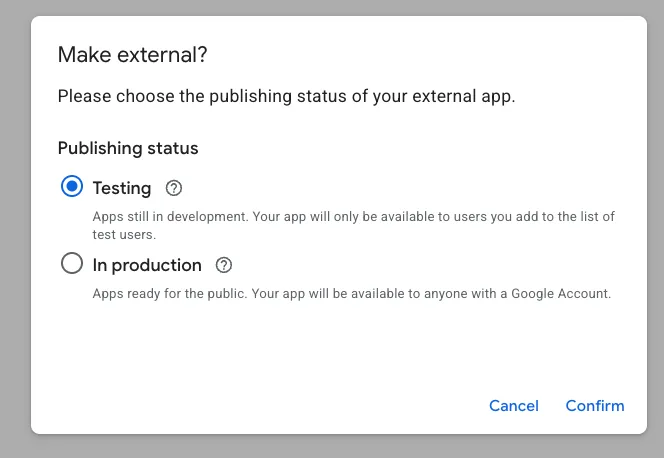
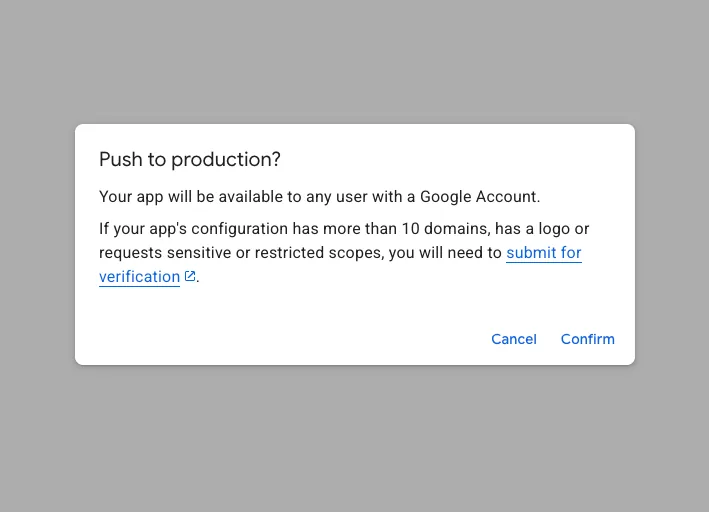
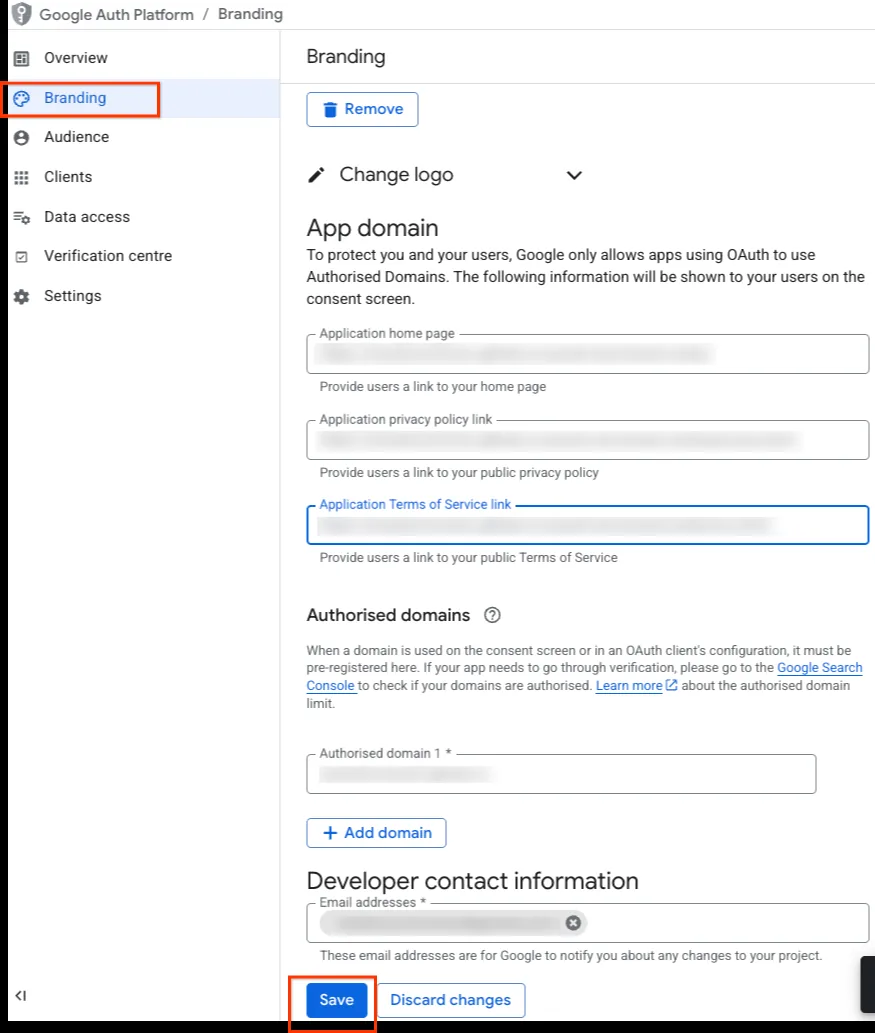
5. Complete the Branding tab. This is the information users see on the consent screen: your application home page, privacy policy and terms of service links, authorized domains, and a developer contact email. Click Save.
6. Click Verify branding. The button sits in the top-right corner of the Branding tab, inside the Verification status card.
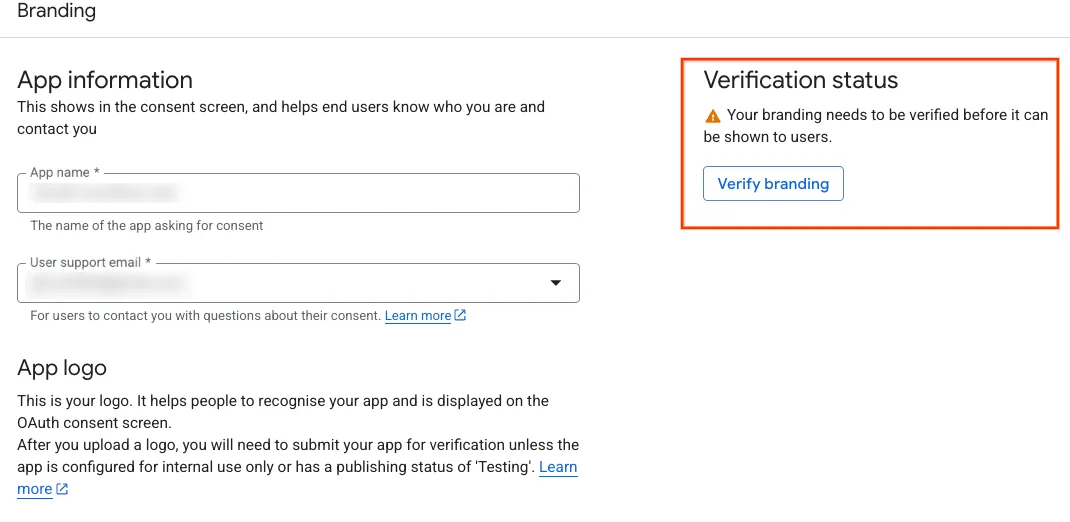
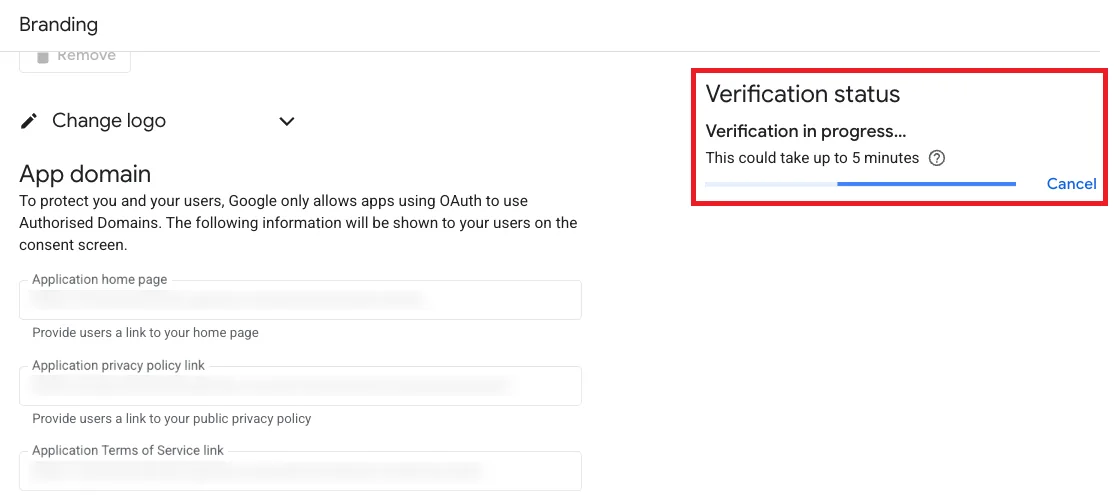
7. Wait a few minutes. Verification is automated, and the interface itself says it can take up to 5 minutes. If an error comes back, fix what it points at — usually a domain or link issue — and run it again.
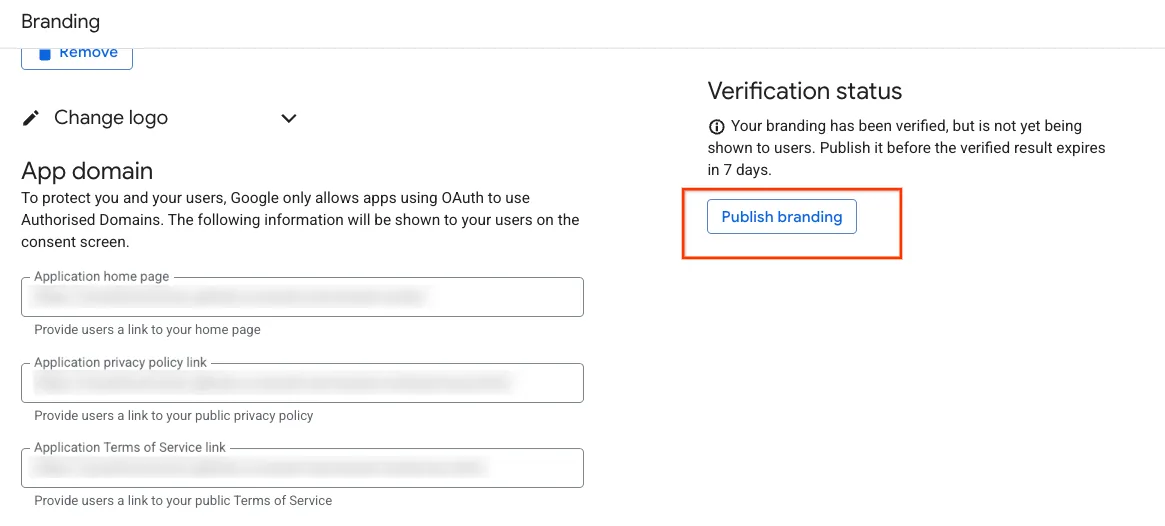
8. Publish the verified branding. Once verification succeeds, click Publish branding. Don't sit on this one — the verified result expires in 7 days if you don't publish it.
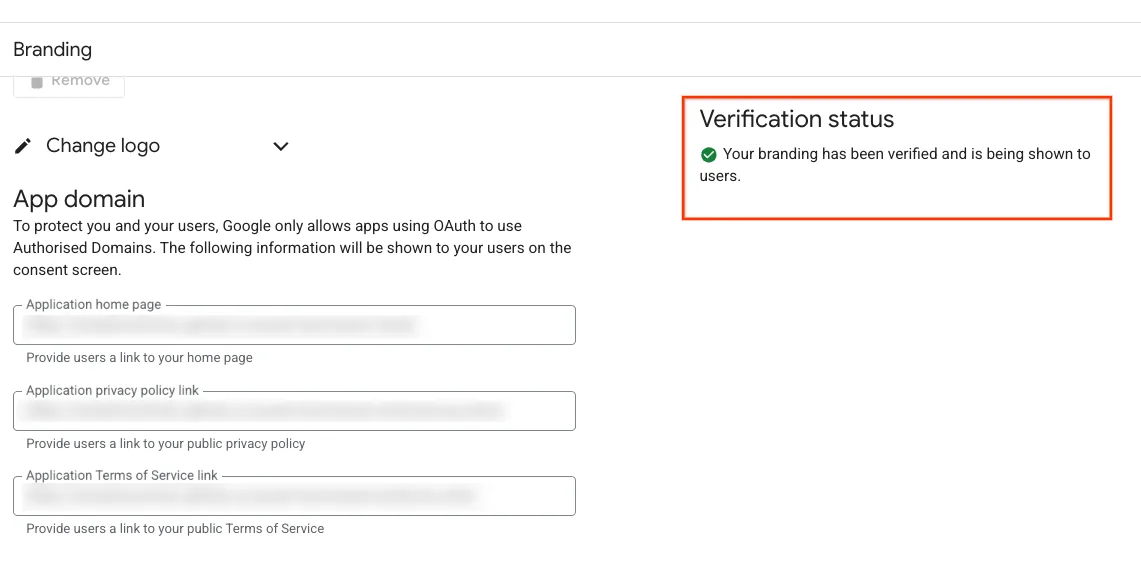
9. Done: the project is brand verified. The status card now shows a green confirmation that your branding is verified and being shown to users. This is the signal Google's team sees when it picks up your pending Basic Access application.
Who can skip this step
- If your token already has Basic or Standard access approved — you don't need it, this only helps pending applications.
- If your Cloud project was already verified for a different Google API (Search Console, Analytics, whatever) — that verification carries over, you don't repeat it.
- If you run several Cloud projects — verifying just one of them is enough.
It's optional
Brand verification isn't a requirement to get Basic Access — it's a trust signal that helps Google's review move faster. If your application is sitting in Pending status right now, it's a few minutes of setup for a review that could otherwise take days. If you already have an approved token, there's nothing to do here.
What Basic Access gives you — and what it still doesn't
Once approved, you get the API's full feature set against every production account under your manager account, up to 15,000 operations a day. That includes exactly what Explorer excludes: planning tools (Keyword Planner calls for keyword ideas and volume), account creation, and billing services. My day-to-day stack — reporting that generates itself every morning, pacing, performance and disapproval monitoring across all accounts — already runs at Explorer level. For a solo operator watching ten client accounts, Basic's daily cap is not something you'll bump into.
Keyword Planner was the first thing that hit the ceiling for me: calls for keyword ideas and search volume returned DEVELOPER_TOKEN_NOT_APPROVED, because planning tools simply aren't part of the Explorer level. Until Basic comes through, I estimate volume from Search Console impression data plus benchmark CPCs, which is close enough for planning decisions. But if keyword research through the API matters to your workflow, Basic Access isn't optional — it's the requirement.
| Access level | What it's for | Limit |
|---|---|---|
| Test Account | Building and debugging against test accounts only — the default for a new token | No production account access |
| Explorer | Production accounts, minus planning tools, account creation, user management and billing — often granted automatically | 2,880 operations/day on production |
| Basic | Full feature set: reporting, campaign management, planning tools, automation on real accounts | 15,000 operations/day — application, review up to 5 business days |
| Standard | High-volume tools, large-scale management platforms — requires Basic first | Daily cap removed for most services — separate application |
If you're running automation for your own agency's accounts, Basic Access is almost certainly all you'll ever need — Standard exists for tools built to serve large numbers of external advertisers at high volume, which is a different problem than one MCC and a handful of client accounts.
Frequently asked questions
How long does the Basic Access review take now?▼
Is brand verification mandatory to get Basic Access?▼
What's the difference between Test, Explorer, Basic, and Standard access?▼
What if I don't have a Google Cloud project yet?▼
Do I need to know how to code to use the Google Ads API?▼
Can one developer token cover all my client accounts?▼
If I have multiple Google Cloud projects, do I need to verify all of them?▼
Want API-driven monitoring for your accounts?
I set up the exact kind of automation described in this guide for client accounts — nightly budget pacing checks, performance pulls, disapproval alerts, search-term mining — all running on top of an approved Google Ads API developer token.
Schedule a free consultationGoogle Ads Consulting
A one-off audit or ongoing strategy partnership.
Google Ads Management
Full account management, including API-driven monitoring.
Offline Conversion Import for B2B
Feeding closed deals back into Google Ads via the API.
GA4 and Google Ads Integration
How to connect GA4 data to Google Ads optimization.
Conversion Tracking Guide
Complete GTM, GA4, and Google Ads tag setup.
Free video audit
Get a Personalised Video Audit of Your Google Ads Account
I'll record a 15-minute walkthrough of your campaigns showing exactly where you're losing money and what to fix first.
Free personalised video audit
Want a video walkthrough of your Google Ads account?
I'll personally record a 15-minute video walking through your campaigns, showing you where you're losing money and giving you 3 specific things to fix immediately. No sales pitch — just value.
What you get:
- 15-min personalised video analysis
- 3 specific quick wins to implement
- Budget & bidding recommendations
Requirements:
- Ad spend: €1,500+/month (or £1,500+)
- Active account for 3+ months
- eCommerce or Lead Gen business
Limited to 5 audits per month. Response within 48 hours.